Quick Start
- Open the app from Shopify Admin, then choose Create New Campaign.
- Select a campaign type that matches the offer: product, collection, quantity, price, cart value, or gift.
- Choose the trigger products, collections, tags, quantities, or cart thresholds.
- Define the discount tiers and decide whether the campaign combines with other discounts.
- Save as inactive first, test the storefront cart, then activate when the exact cart scenario works.
Campaign Builder Walkthrough
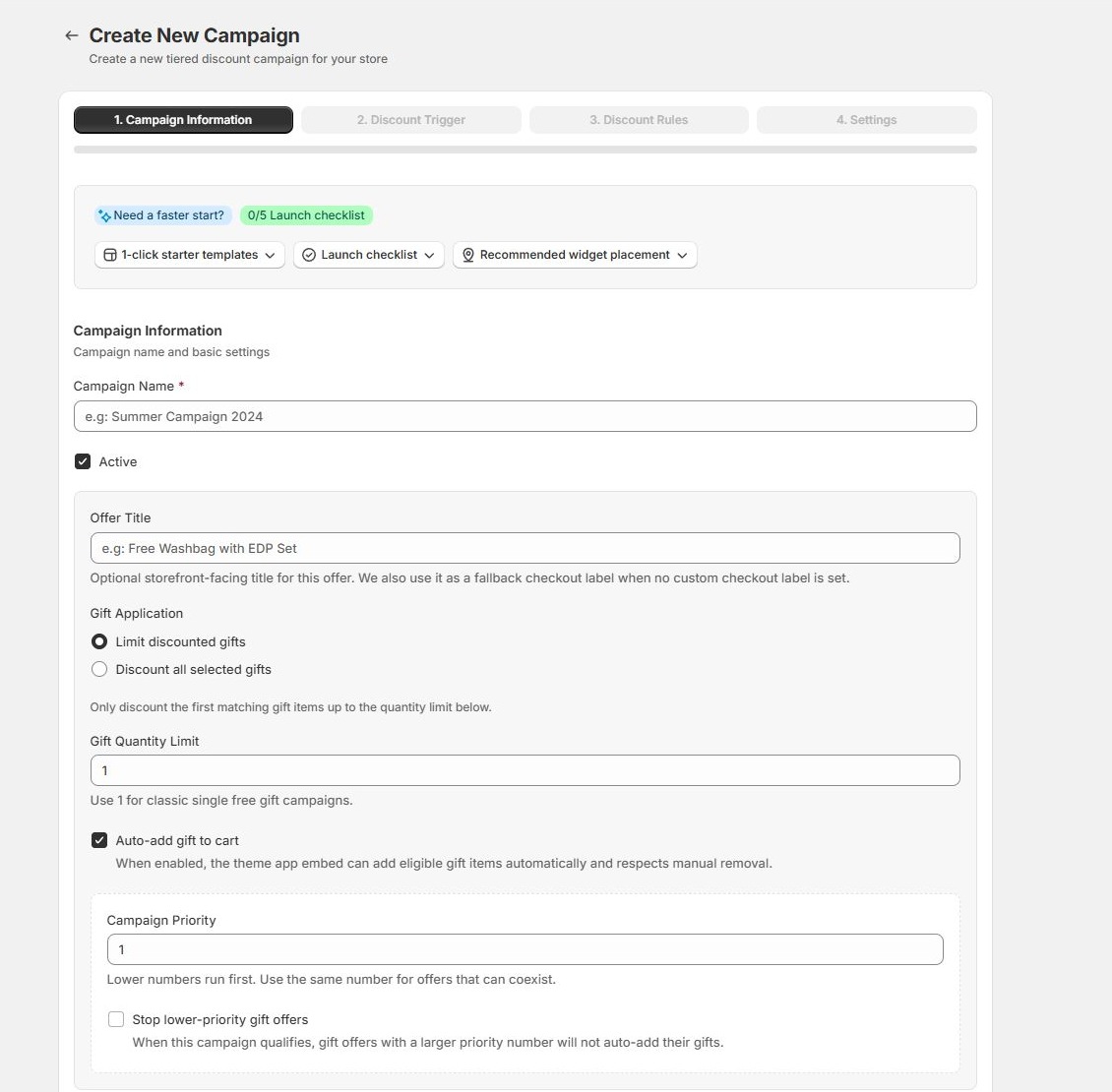
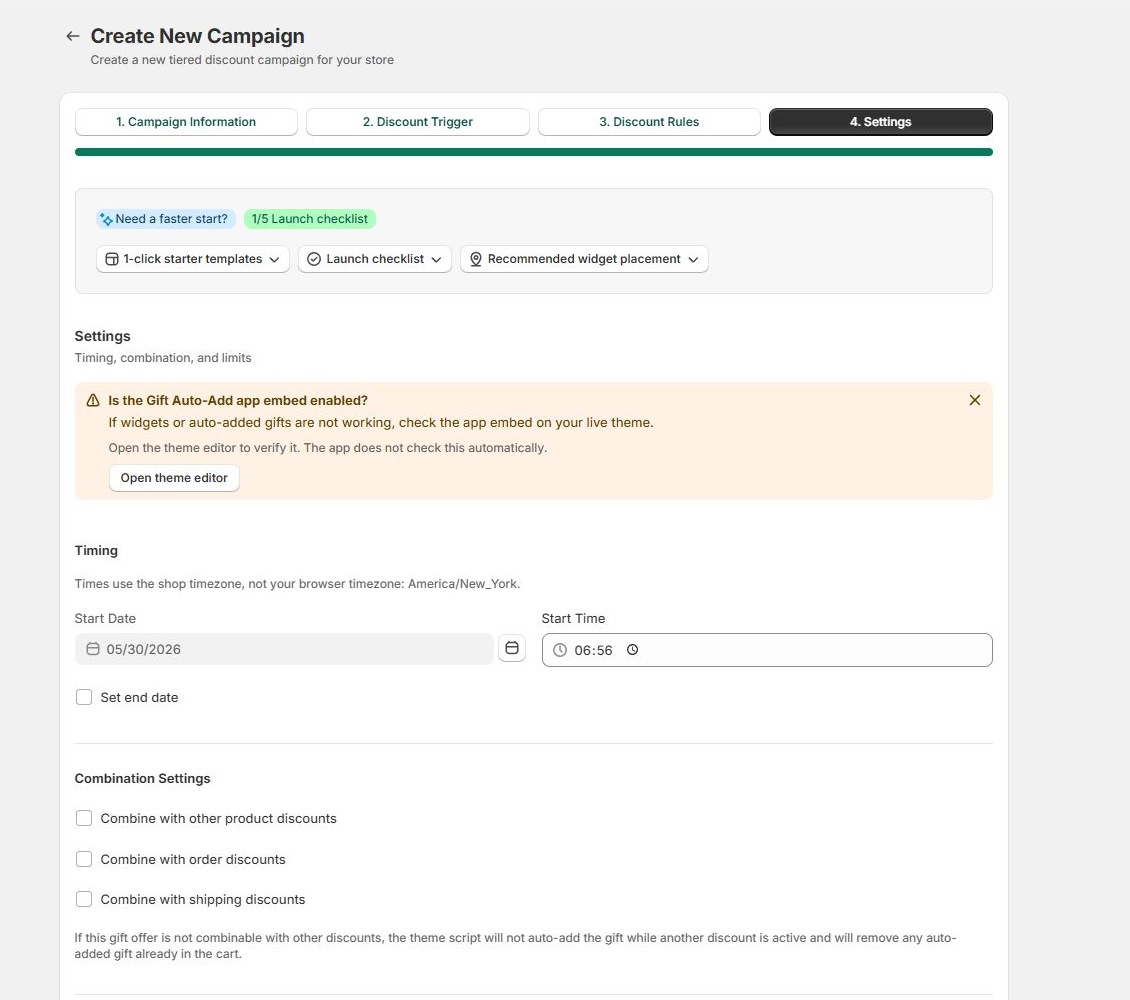
- Step 1 Campaign information
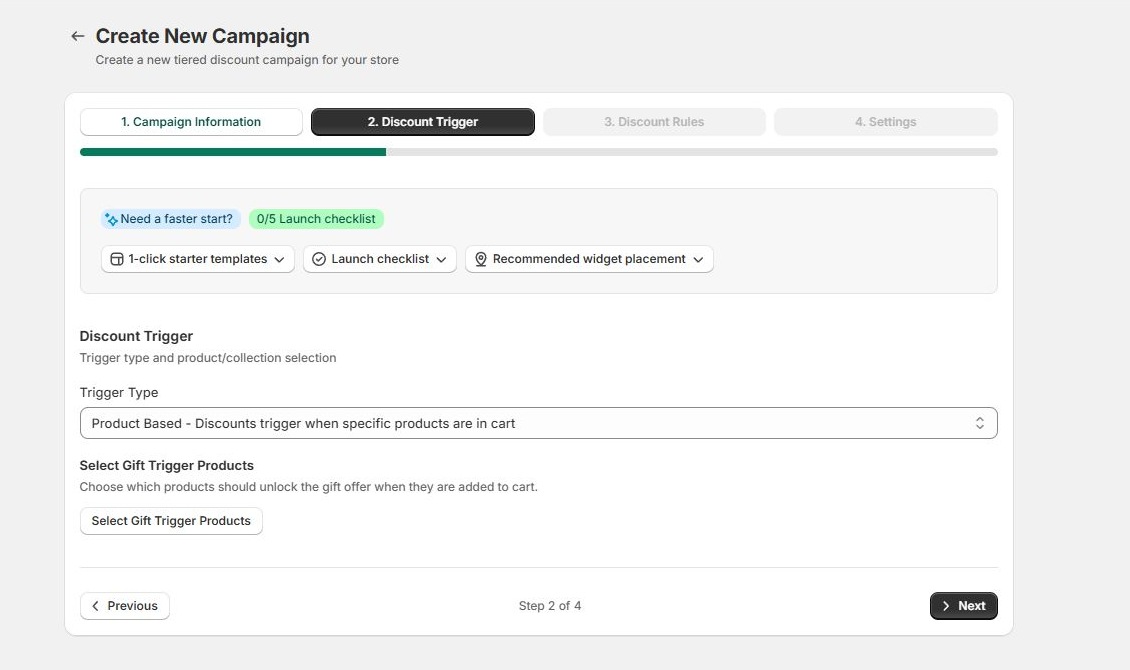
- Step 2 Discount trigger
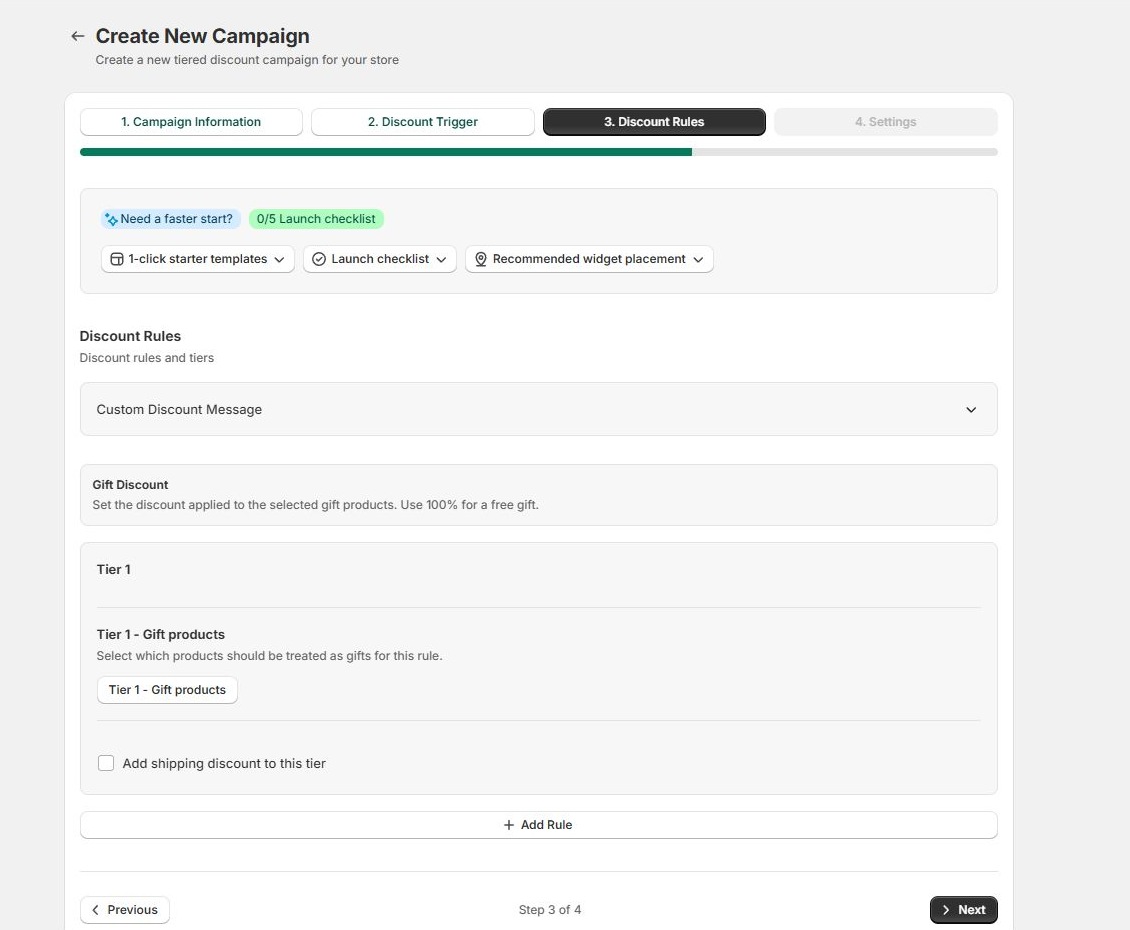
- Step 3 Discount rules
- Step 4 Settings
Core Concepts
For production stores, create one focused campaign first, test it in cart and checkout, then layer more advanced targeting or priority rules.
Campaign Types
Tiered Product Discounts
Use product, collection, tag, quantity, or price based triggers to discount qualifying product lines. Product selection includes products with variants; selecting a product applies to its variants unless a legacy variant campaign already exists.
Buy X Get Y
Use this when buying one product or group unlocks a discounted or free target product. Test both the qualifying cart and the cart after the trigger item is removed.
Cart Value Rewards
Use cart subtotal thresholds to unlock product gifts, order discounts, or Starter+ shipping benefits. This is useful for "spend more, save more" campaigns.
Gift Offers
Gift offers can auto-add eligible gifts to the cart. The storefront script handles priority, manual removal, cart updates, and cleanup when the cart no longer qualifies.
- Limit discounted gifts: Use a fixed gift and quantity limit.
- Random one from selected gifts: Select a pool of real, physical gift variants. MTD chooses one available variant before checkout and keeps that choice stable for the qualifying cart.
- Discount all selected gifts: Apply the gift discount to every configured gift found in the cart.
For mystery gifts that must reach fulfillment as a real SKU, select the physical variants in the random gift pool. Do not use a non-physical placeholder product followed by an order-edit Flow.
Shipping Benefits
Campaign tiers can include a shipping discount percentage on Starter and Pro plans. Use 100% for free shipping or a smaller percentage for partial shipping discounts.
- Keep product, order, and shipping combination settings aligned with the campaign goal.
- Test checkout delivery options because shipping discounts are visible after Shopify has delivery rates.
- Use customer, country, schedule, and priority rules when a shipping benefit should be limited.
Shipping discounts depend on Shopify discount classes and checkout delivery options. Always test a real checkout path before publishing a shipping campaign.
Storefront Widgets
Theme app blocks can show product badges, quantity tier pickers, bundle tiers, cart progress, cross-sell cards, collection upsells, and gift auto-add behavior.
- Enable only the widgets needed for the campaign.
- Place product-page widgets near the product form.
- Place cart widgets in the cart page or cart drawer area where shoppers already review totals.
- Use the Gift Auto-Add embed when gifts should be inserted automatically.
Theme Integration
Most themes work with the default auto mode. Custom cart drawers may need selectors so the app can find the drawer, identify line items, and refresh the right section after a gift is added or removed.
Settings
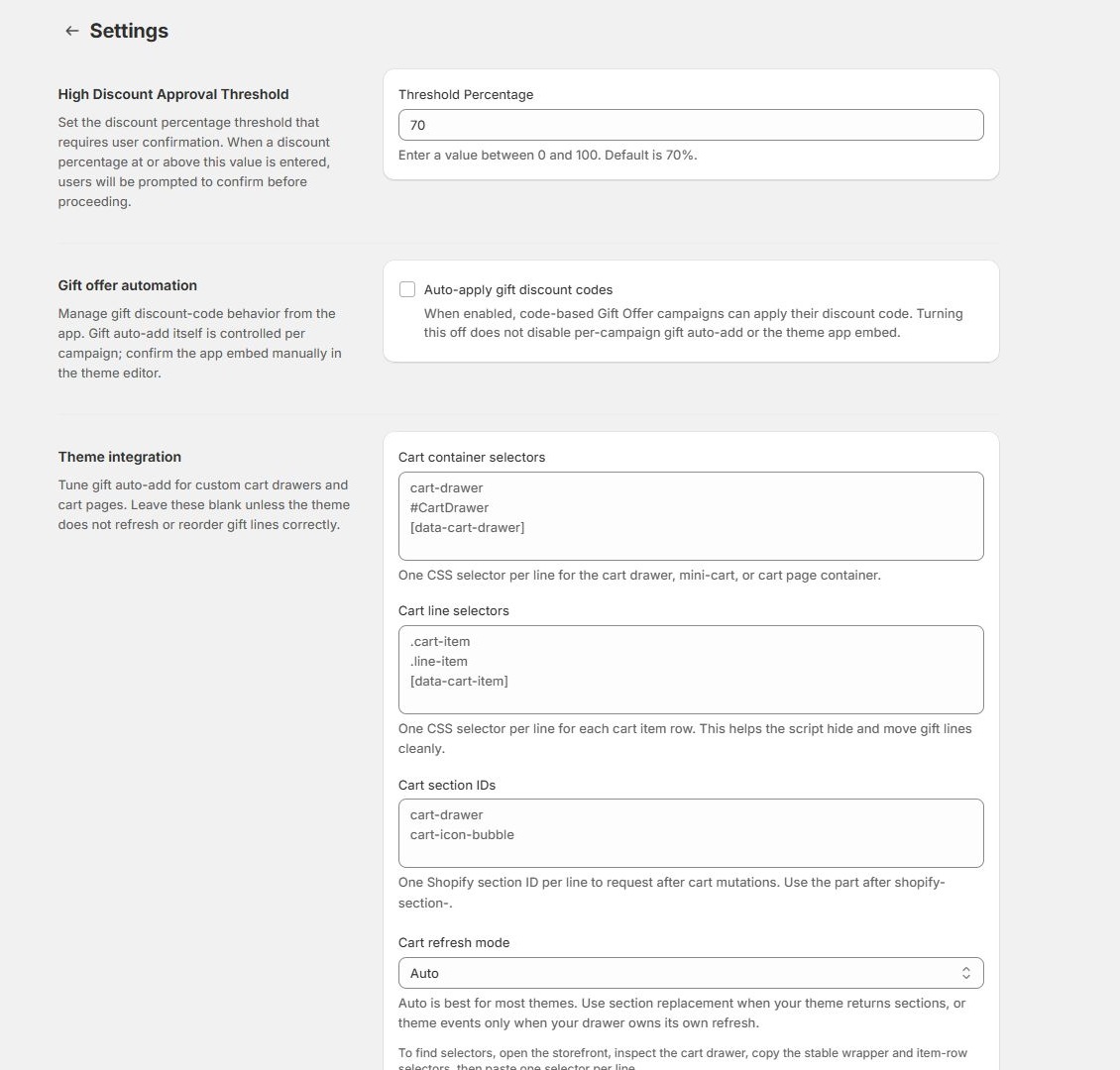
- Cart container selectors: drawer, mini-cart, or cart page wrappers, one selector per line.
- Cart line selectors: repeated cart item rows, one selector per line.
- Cart section IDs: Shopify section IDs used for section rendering refresh.
- Cart refresh mode: Auto, Replace sections, or Theme events only.
How To Find Selectors
- Open the storefront and add a product to cart.
- Right-click the cart drawer or cart page and choose Inspect.
- Choose stable selectors such as
#CartDrawer,cart-drawer,[data-cart-drawer],.cart-item, or.line-item. - Avoid generated classes, animation-only classes, product titles, or selectors that disappear after the drawer opens.
Settings & Analytics
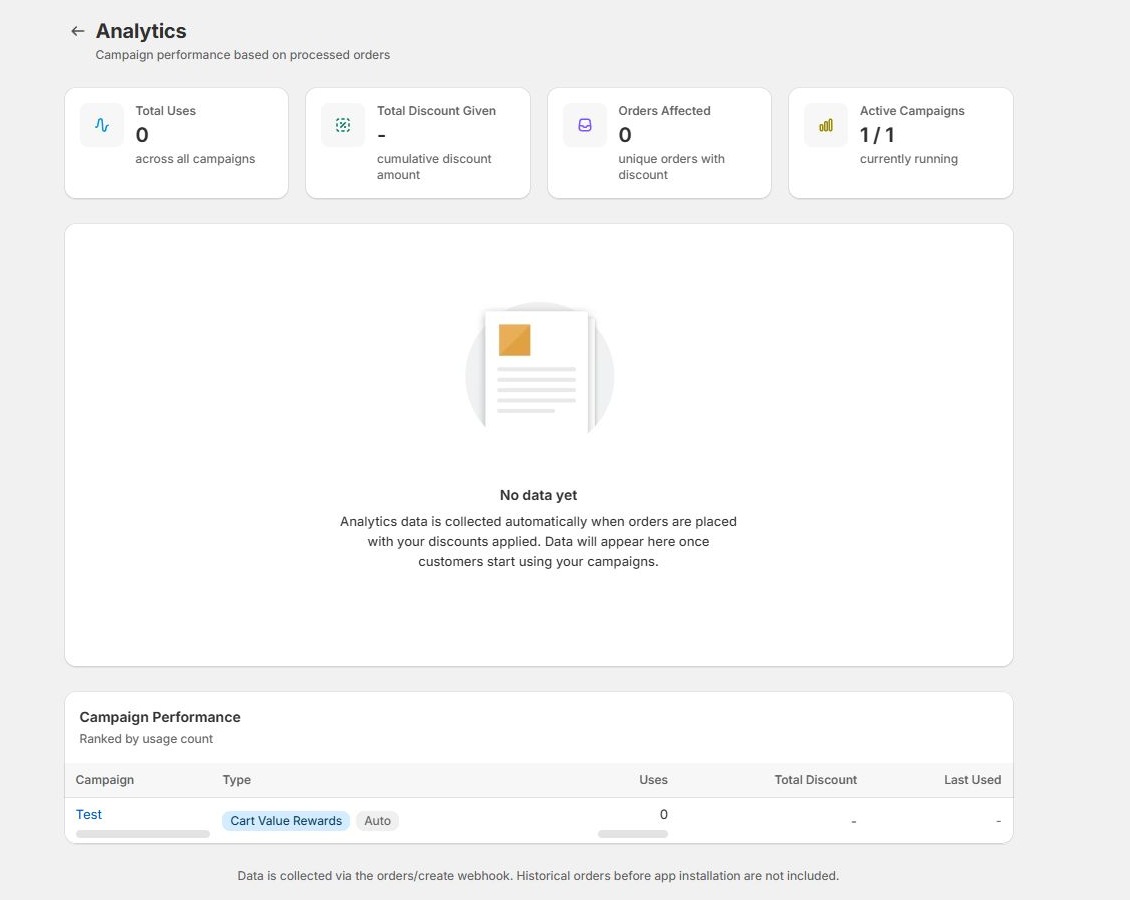
Settings control global discount safety, gift automation, language, and theme integration fields. Analytics summarizes processed order usage after campaigns start receiving orders.
Storefront Testing Checklist
- Campaign is active and scheduled for the correct date.
- Exact trigger cart qualifies.
- Non-qualifying cart does not receive the benefit.
- Gift is removed when the trigger is removed.
- Manual gift removal is respected when configured.
- Discount label appears correctly in checkout.
- Mobile cart drawer refreshes correctly.
- Cart page and cart drawer behave consistently.
- Country and customer tag targeting work when enabled.
- Combination rules match the merchant promise.
Troubleshooting
Gift does not auto-add
Confirm the Gift Auto-Add embed is enabled, the campaign is active, the cart qualifies, and theme selectors point to real cart elements.
Cart drawer does not refresh
Set Cart refresh mode to Replace sections and add the drawer section ID. If the theme handles its own refresh events, try Theme events only.
Discount appears in cart but not checkout
Check campaign dates, discount classes, combination rules, target products, customer tags, and country targeting.
Need debug logs
Add ?mtdGiftDebug=1 to the storefront URL to enable Gift Auto-Add console logs. Use ?mtdGiftDebug=0 to disable them.
Media Checklist
Admin screenshots are included above. Use the remaining slots when preparing public documentation, GitBook pages, or a theme-specific storefront guide.
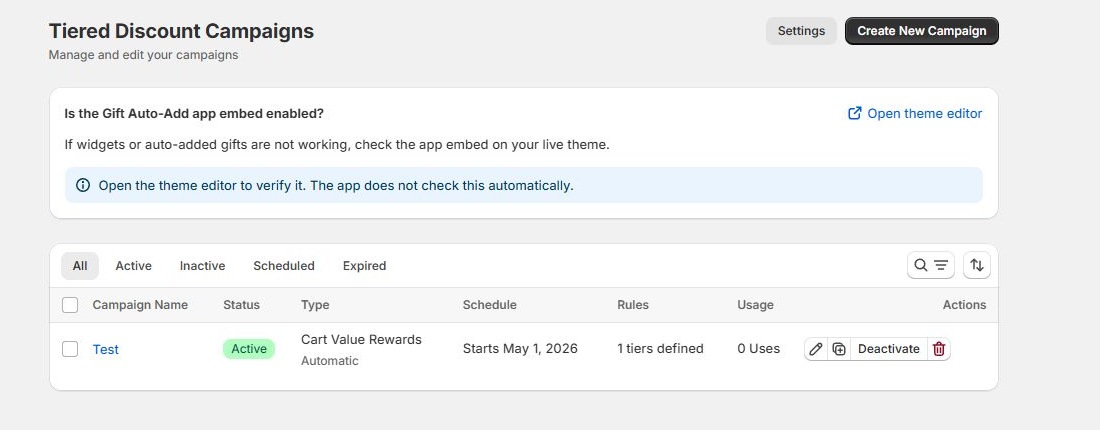
- All Campaigns overview screenshot. Included.
- Create campaign flow walkthrough. Included as an animated browser slideshow.
- Settings page screenshot. Included.
- Analytics dashboard screenshot. Included.
- Product picker with variants screenshot.
- Shipping discount tier screenshot.
- Gift auto-add storefront GIF.
- Theme selector setup GIF.
- Checkout discount verification screenshot.